Reference Guide
Table of Contents
Practice
In Practice, you can load practice exercises from your local or cloud Practice Collections, customize scenario settings to your liking, and run your practice sessions.
1. Practice Overview
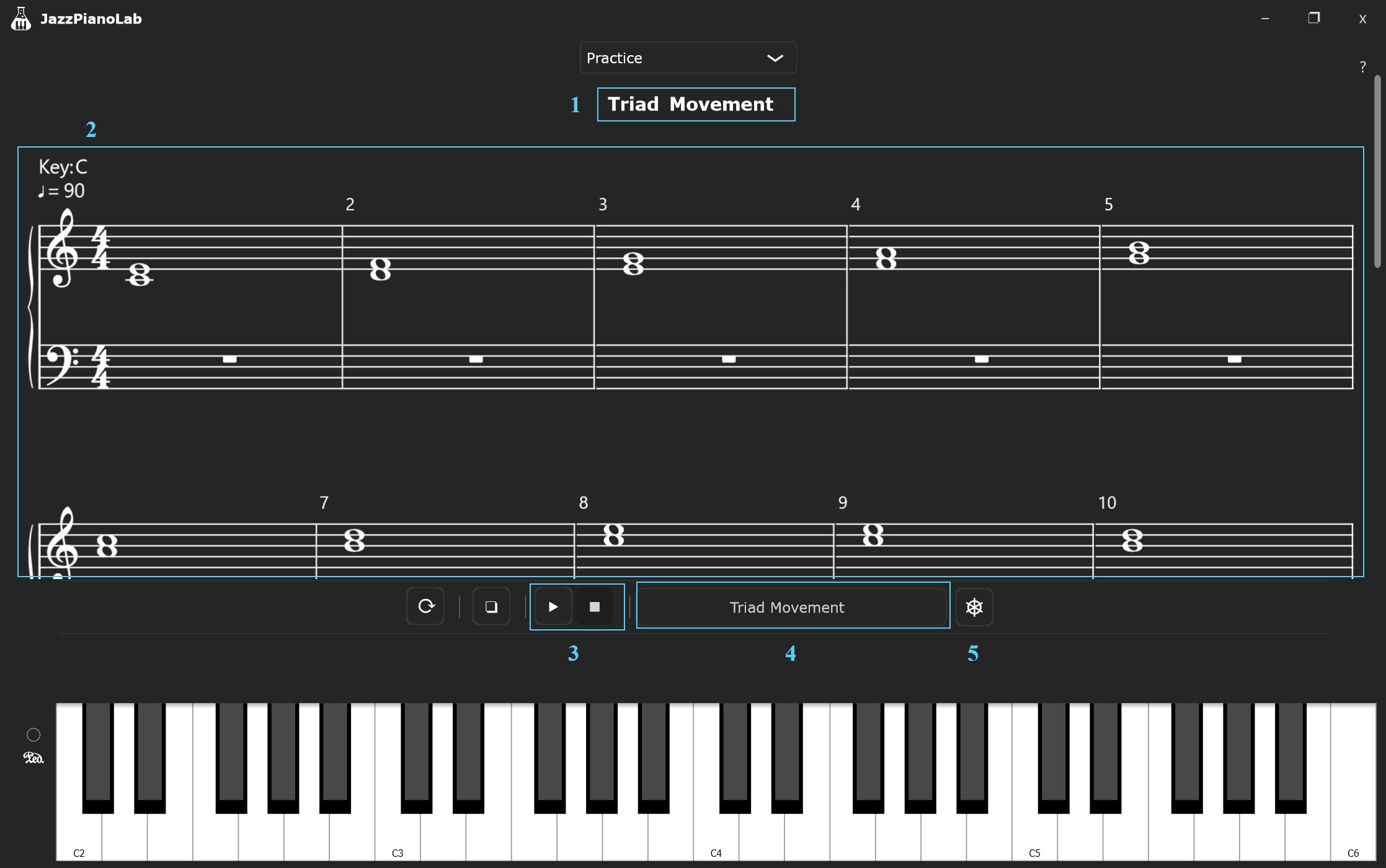
Please refer to the screenshot for visual details.
- 1.1 Practice Scenario name.
- 1.2 Practice Scenario sheet music.
- 1.3 Start/Stop the currently loaded scenario.
- 1.4 Currently loaded scenario. Click here to open the Scenario Selection dialog.
- 1.5 Scenario Settings. Click here to open the configuration dialog for the currently loaded scenario.
2. Scenario Settings for Sight Reading Scenarios
Here is the list of elements that can be configured for Sight Reading scenarios.
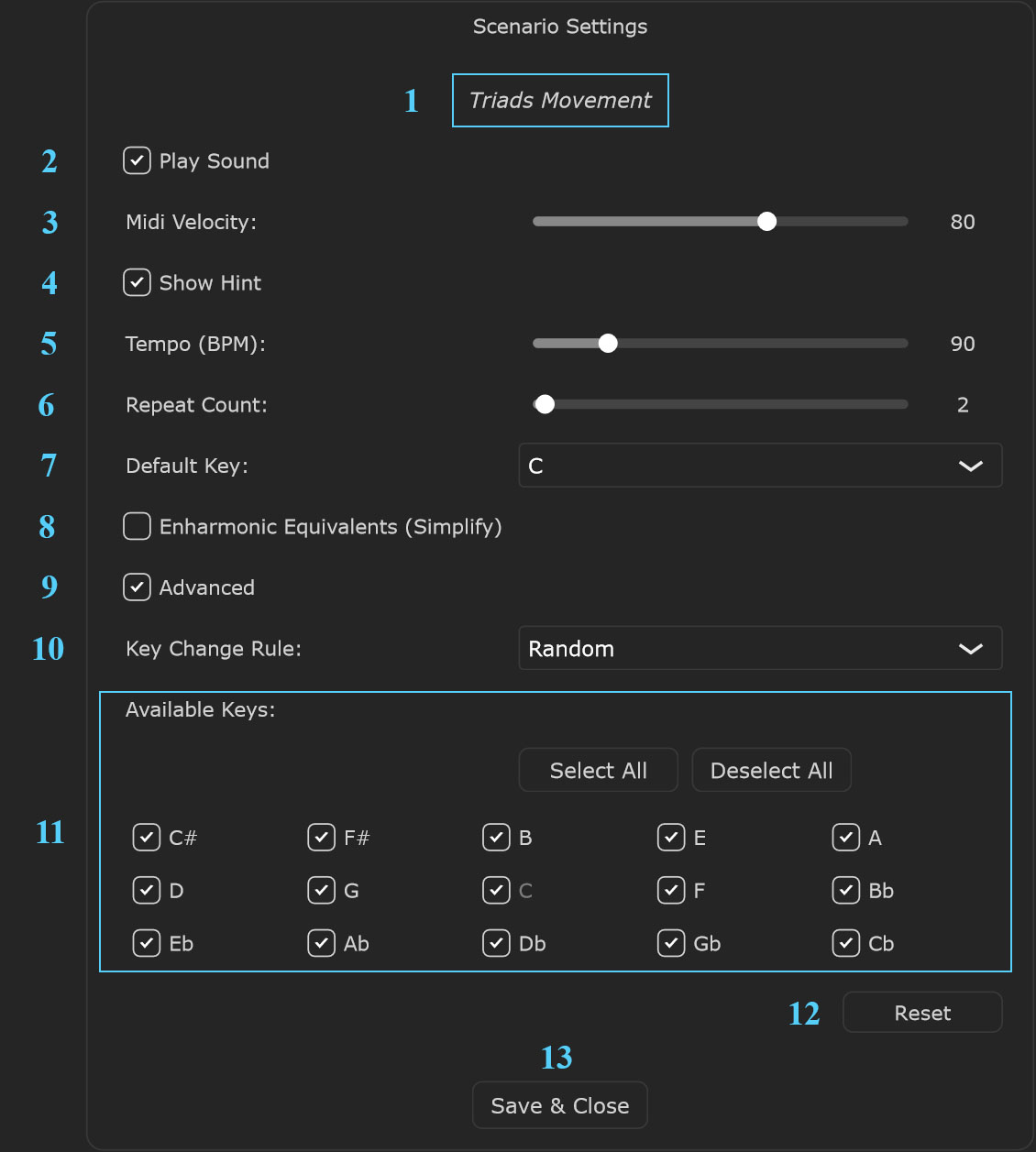
Please refer to the screenshot for visual details.
- 2.1 Scenario name.
- 2.2 Play Sound: Play the scenario's sheet music by sending MIDI events to a VST instrument or MIDI output.
- 2.3 MIDI Velocity: If Play Sound is enabled, this sets the velocity of the MIDI notes.
- 2.4 Show Hint: Highlight the pressed notes from a scenario on the virtual MIDI keyboard.
- 2.5 Tempo: Change the scenario's tempo (in BPM).
- 2.6 Repeat Count: Set how many times to repeat a scenario. When the Repeat Count is greater than 0, you will be able to apply modulation rules if needed.
- 2.7 Default Key: Set the scenario's default (starting) key.
- 2.8 Enharmonic Equivalents (Simplify): Apply enharmonic equivalents to simplify sight reading where possible (e.g., display F instead of Gbb, D instead of C##, etc.).
- 2.9 Advanced: Show/Hide advanced settings.
- 2.10 Key Change Rules:
- No Change: Do not apply modulation to a scenario on repeat.
- Interval: Apply interval modulation to a scenario on every repeat. Use the Key Change Interval drop-down to select the ascending modulation interval.
- Random: Apply random key modulation to a scenario on every repeat.
- 2.11 Available Keys: Select the specific keys that will be randomly chosen for modulation.
- 2.12 Reset: Reset scenario settings to their defaults (when applied to official JazzPianoLab scenarios, this will revert to the specific settings from the JazzPianoLab servers).
- 2.13 Save & Close: Save your scenario settings and close the dialog.
3. Metronome and Tempo Increment
When a Practice Scenario's movement logic mode is set to Automatic, you will be able to configure the Metronome and Tempo Increment on repeat.
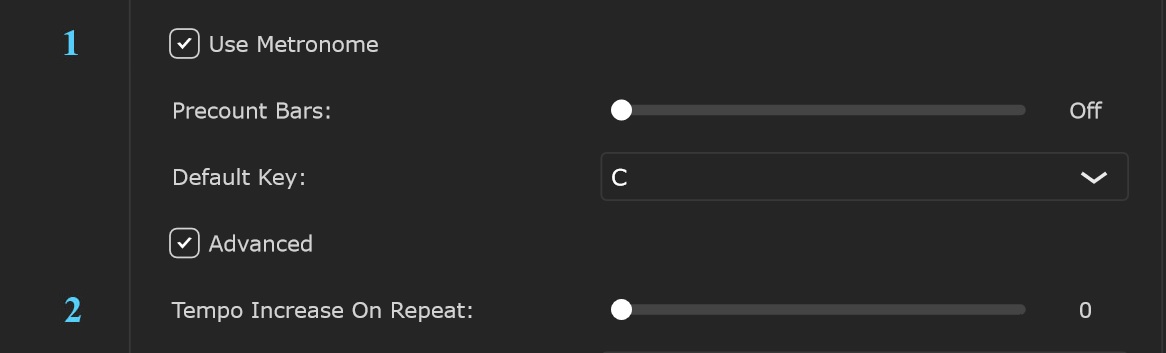
Please refer to the screenshot for visual details.
- 3.1 Use Metronome: Enable or disable the metronome.
- 3.2 Tempo Increase On Repeat: Set the tempo increment (in BPM) that will be added to the tempo on every repeat of a scenario.
4. Scenario Settings for Ear Training Scenarios
Here is the list of elements that can be configured specifically for Ear Training scenarios. (Note: Please refer to Section 2 for generic Scenario Settings elements).
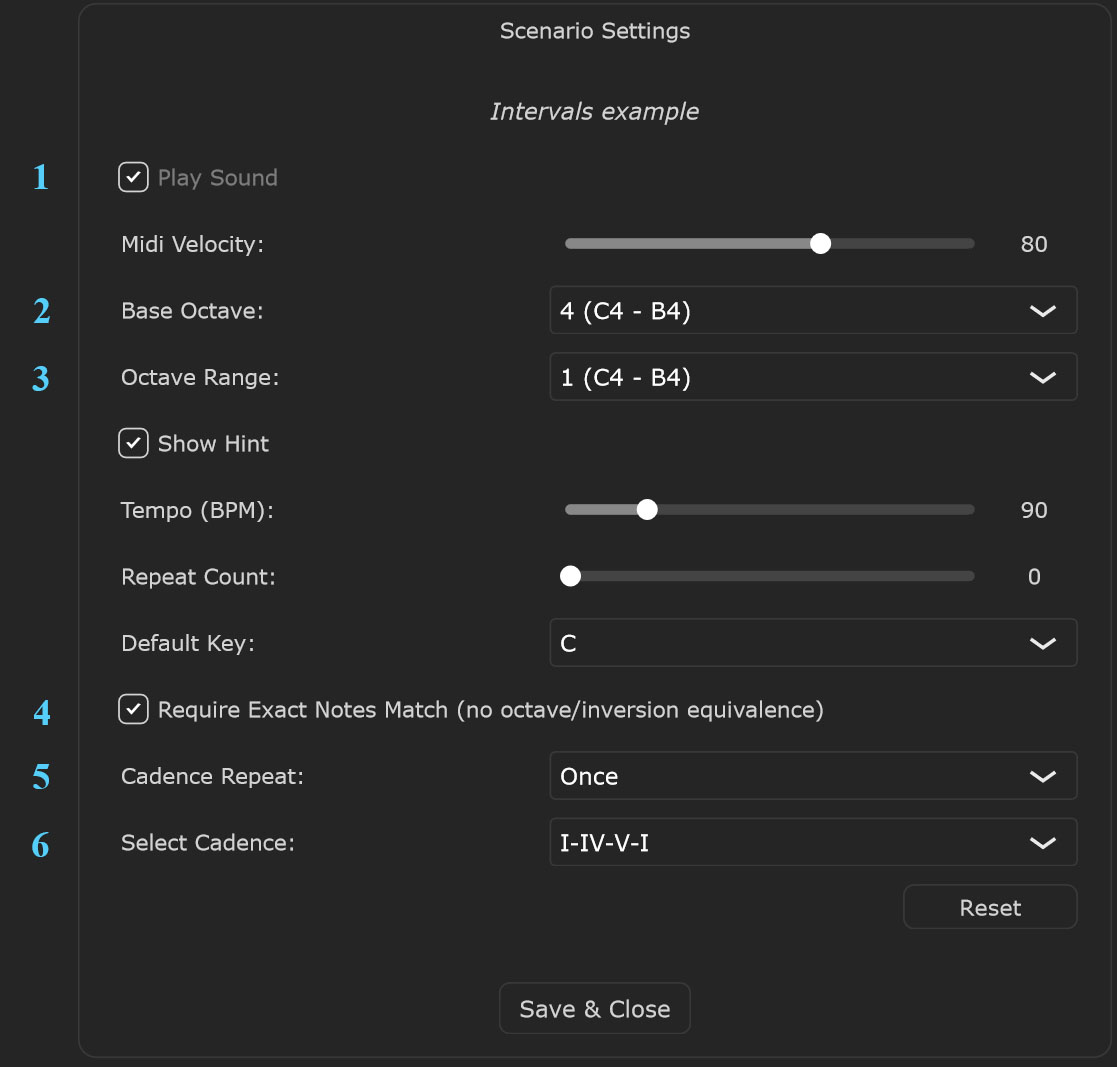
Please refer to the screenshot for visual details.
- 4.1 Play Sound: In Ear Training mode, sound is required and this setting is permanently enabled.
- 4.2 Base Octave: Select the base octave used for generating root notes for intervals and chords.
- 4.3 Octave Range: Select the range that will be used alongside the Base Octave to generate root notes for intervals and chords.
- 4.4 Require Exact Notes Match: When enabled, the user is expected to play the exact notes in the exact octave as shown on the music sheet (e.g., if C4 is shown, playing C3 or C5 will be treated as a wrong note).
- 4.5 Cadence Repeat: Select how often to repeat the cadence during practice. Note: A cadence helps establish a tonal center (the "home" key) and activates your relative pitch by providing musical context.
- None: Do not play a cadence at all.
- Once: Play the cadence only as the first measure of a practice scenario.
- Every 4 measures: Play the cadence as the first measure of a practice scenario, and then repeat it every 4 measures.
- Always: Play the cadence every other measure.
- 4.6 Select Cadence: Choose which cadence to use. JazzPianoLab provides multiple cadences to select from, and this list will be expanded in future updates.
- 4.7 Cycle Each Chord/Interval ...: Generate an individual chord/interval for every root note configured in the Scenario Manager for the practice.
- 4.8 Diatonic Chords/Intervals Only: Use only diatonic chords/intervals for the practice.

Please refer to the screenshot for visual details.
5. Playhead and Hint Mode
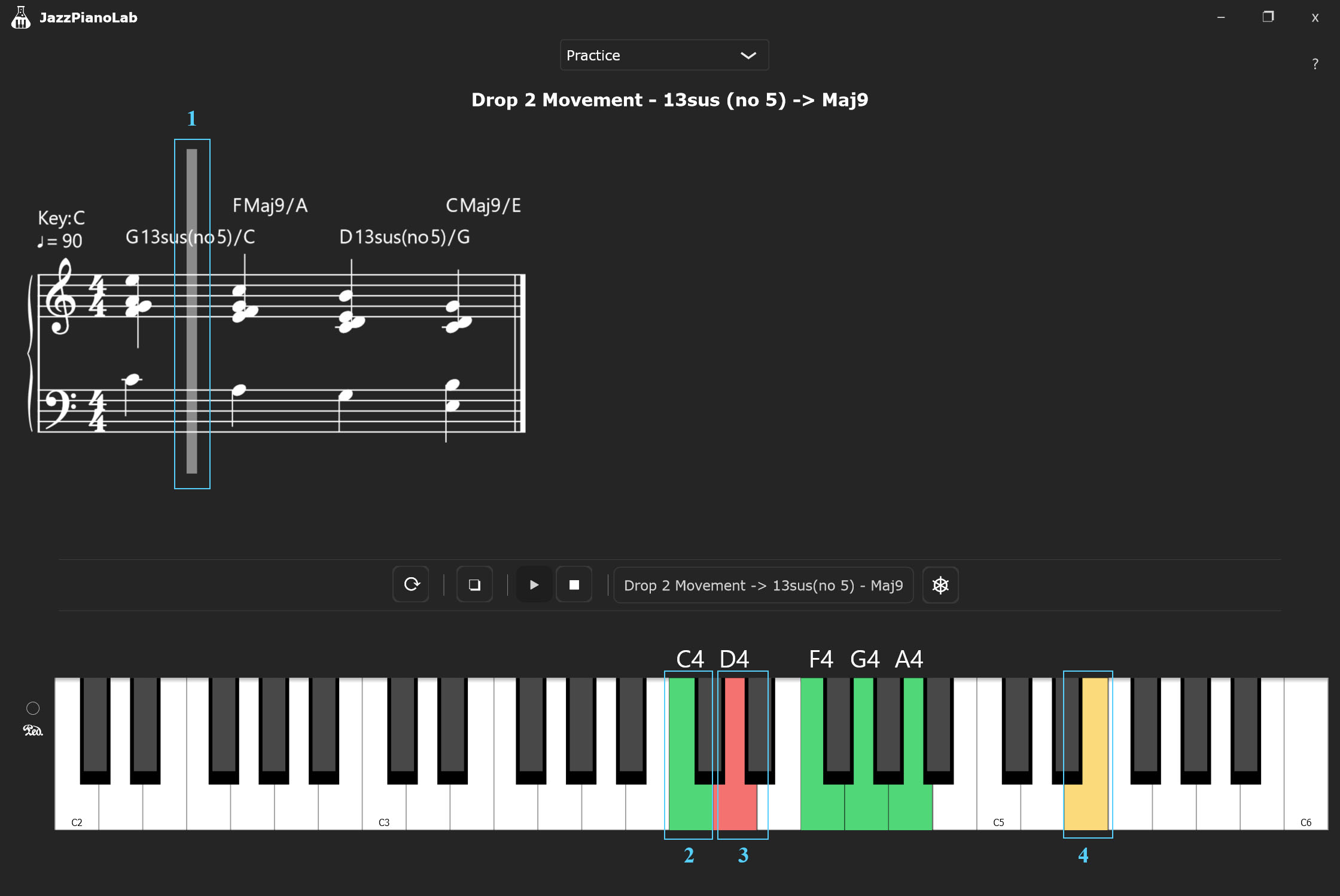
When a Practice Scenario is playing, a vertical playhead will move across the staff to indicate which measure and beat is currently active. When Show Hint mode is enabled, notes from the practice scenario will be highlighted on the virtual MIDI keyboard.
Please refer to the screenshot for visual details.
- 5.1 Playhead: Indicates the current playback position.
- 5.2 Right Notes: When the correct notes (exact notes matching the scenario's music sheet) are pressed, they will be highlighted in green on the virtual MIDI keyboard.
- 5.3 Wrong Notes: When incorrect notes (notes that do not match the music sheet) are pressed, they will be highlighted in red on the virtual MIDI keyboard.
- 5.4 Hint Notes: When hints are active, the notes currently being played from the music sheet will be highlighted in pastel yellow on the virtual MIDI keyboard. (Note: In Automatic Movement Logic mode, hint notes will be automatically shown on the last beat of a measure).